Anchors in View Area
Node arrangement in view area by default will preserve proportions of position and size of nodes when resized. Compare the following two views:
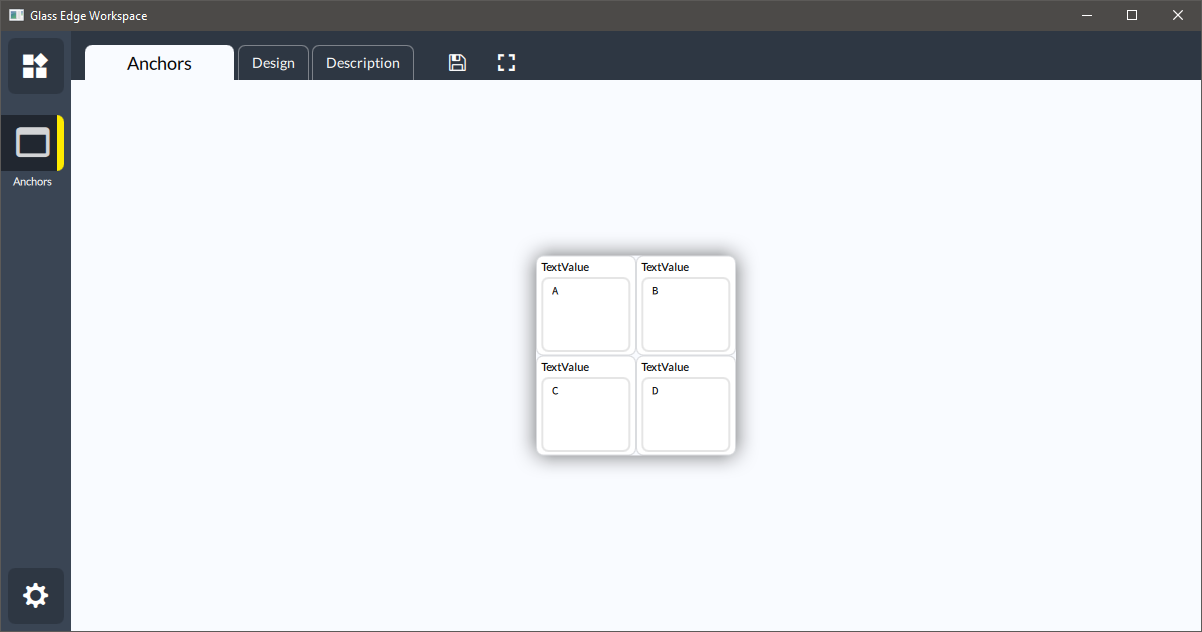 Normal mode.
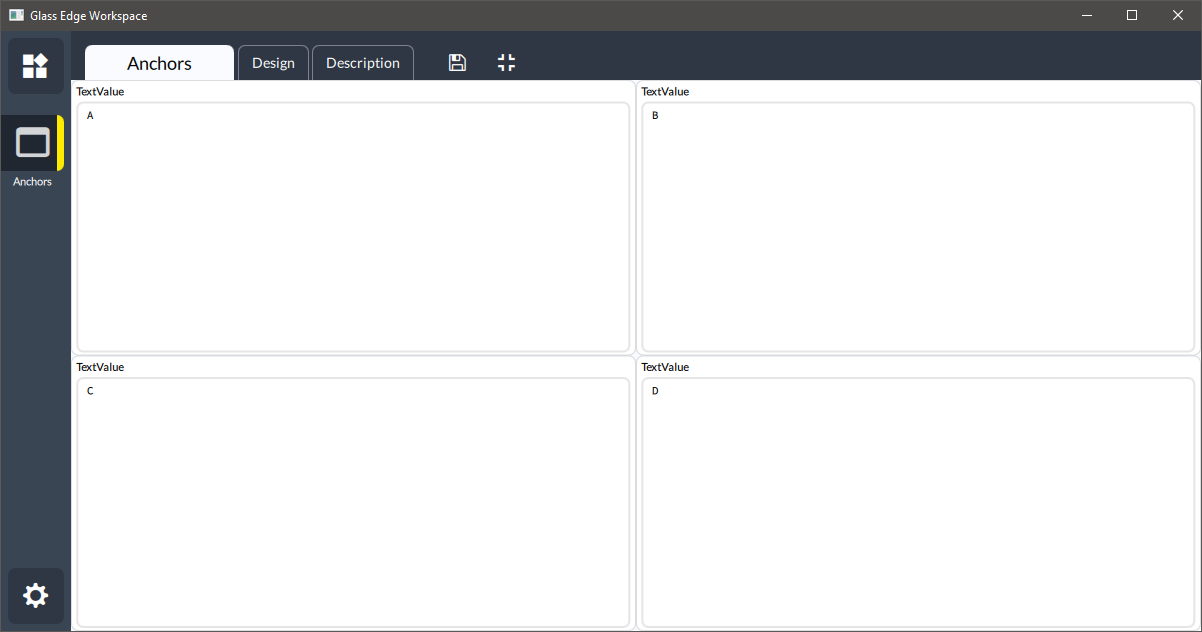 Fullscreen mode.
Such stretching is not always desirable, and this problem can be solved by using anchors. In the example below we will make all four nodes preserve their size and attach to corresponding corners.
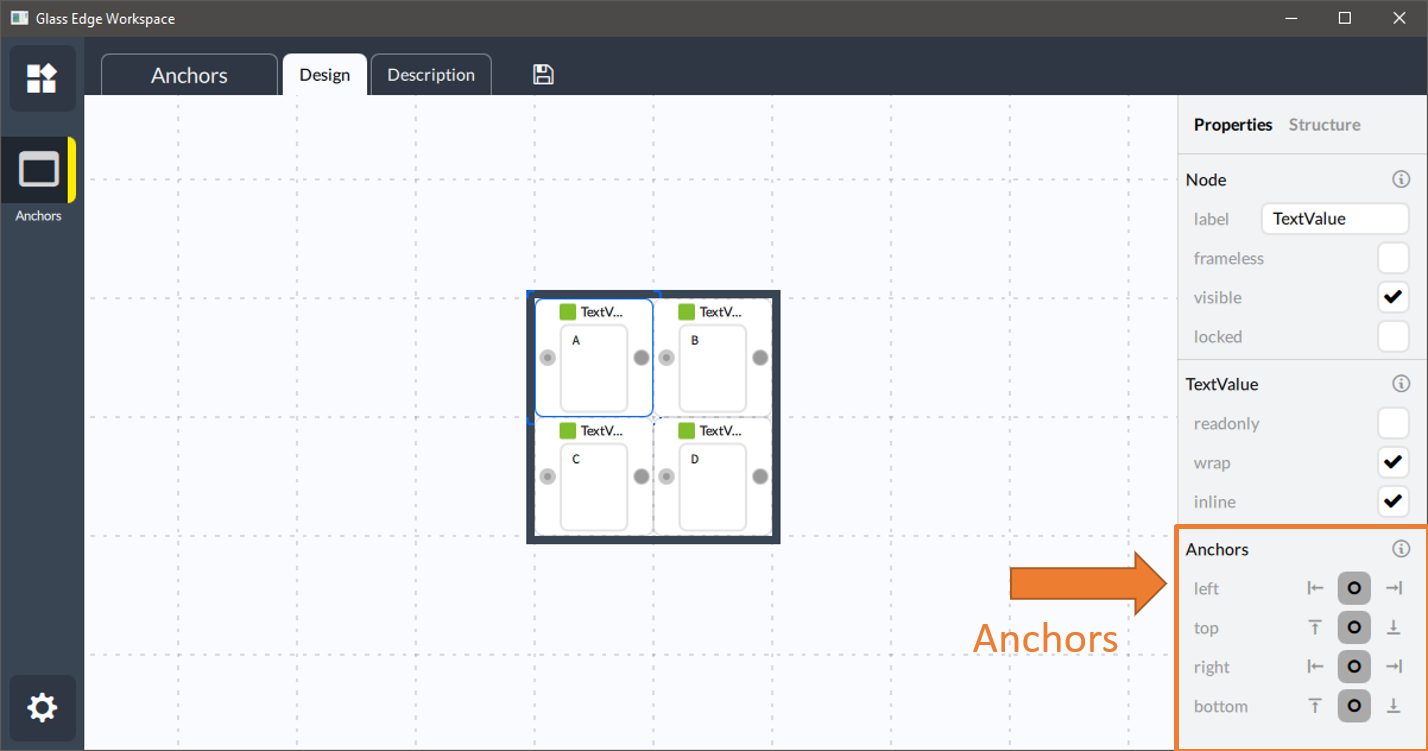
For each node we will adjust anchors in the following way:
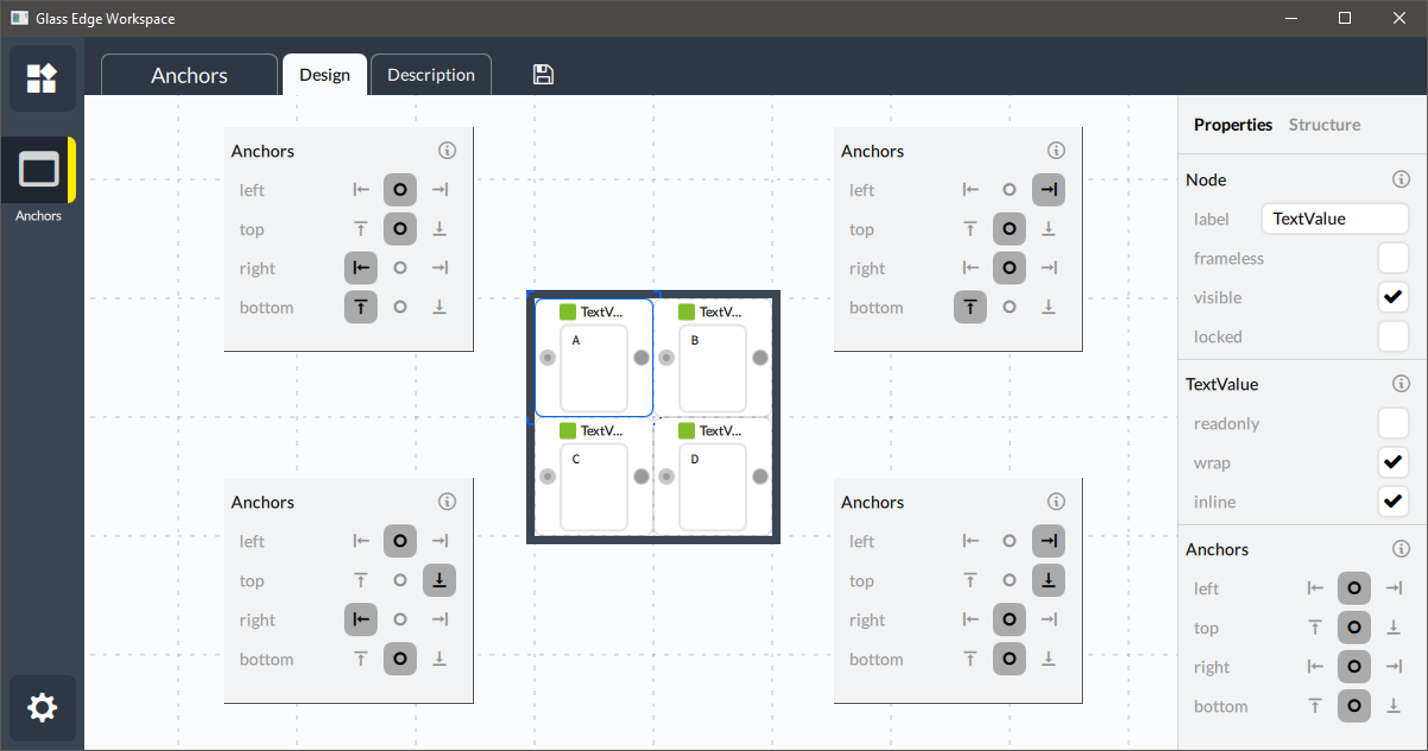
Anode:- left side remains proportinal - at the left edge
- top side remains proportinal - at the top edge
- right side preserves distance from the left edge
- bottom side preserves distance from the top edge
Bnode:- left side preserves distance from the right edge
- top side remains proportinal - at the top edge
- right side remains proportinal - at the right edge
- bottom side preserves distance from the top edge
Cnode:- left side remains proportinal - at the left edge
- top side preserves distance from the bottom edge
- right side preserves distance from the left edge
- bottom side remains proportinal - at the bottom edge
Dnode:- left side preserves distance from the right edge
- top side preserves distance from the bottom edge
- right side remains proportinal - at the right edge
- bottom side remains proportinal - at the bottom edge
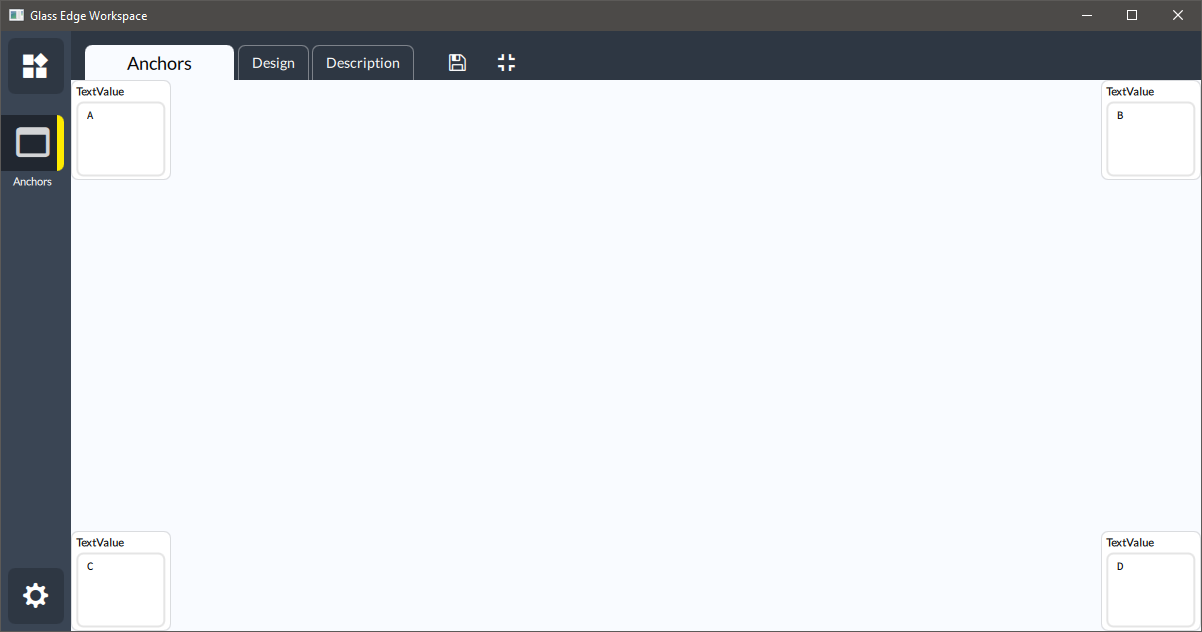
The result is what we were aiming for - all nodes are in their respective corners with the original size.
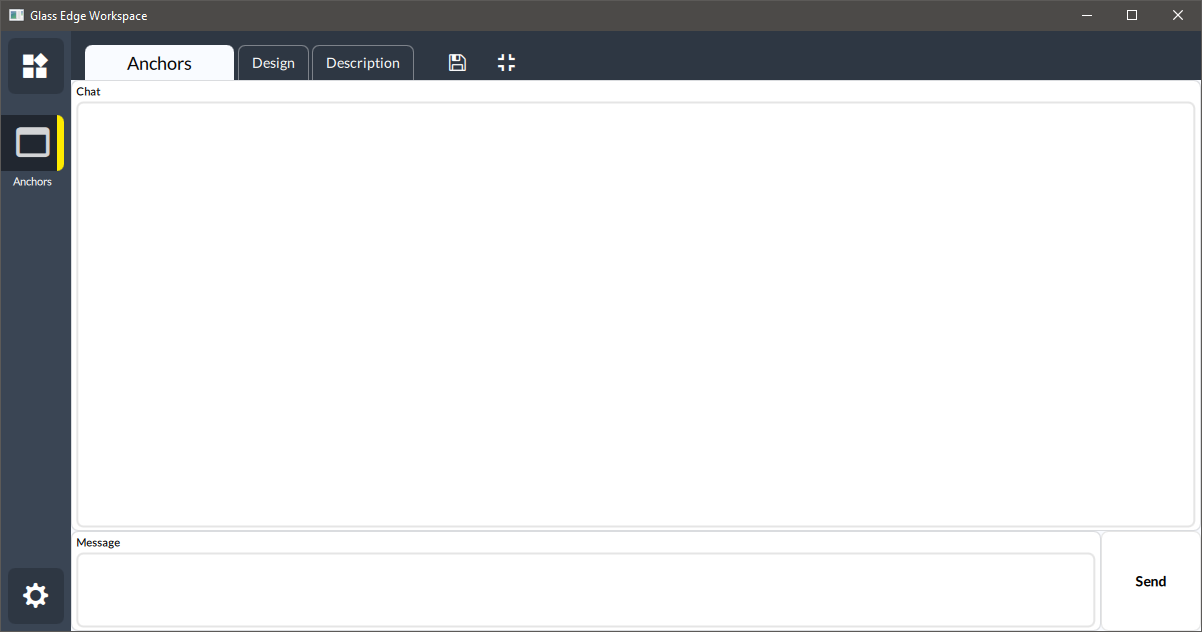
A more useful example would be to arrange nodes for a chat use case:
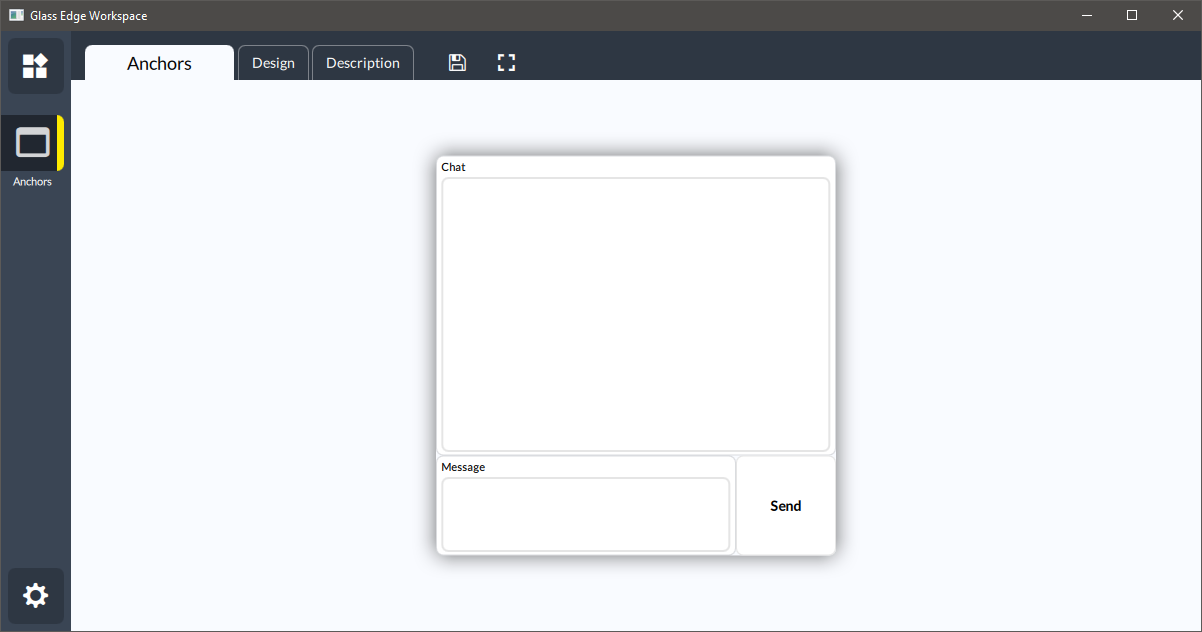
If we expand the view to fullscreen, all controls will resize:
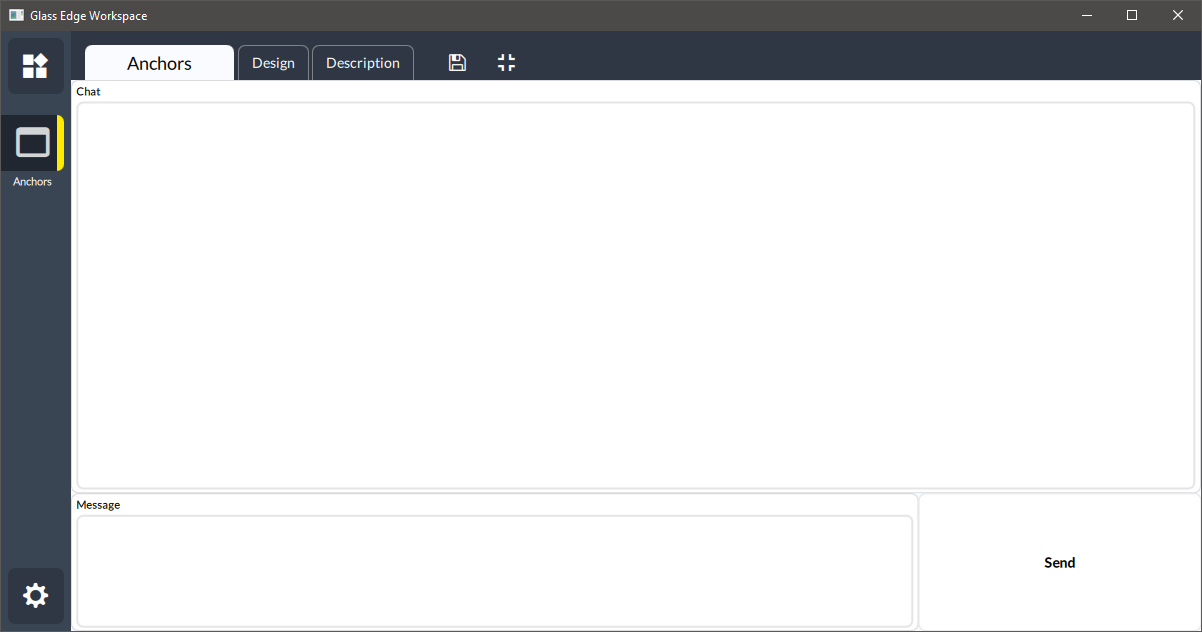
But we would rather have Message input to keep its height, and Send button to keep its size.
In order to do it, we will change anchors in this way:
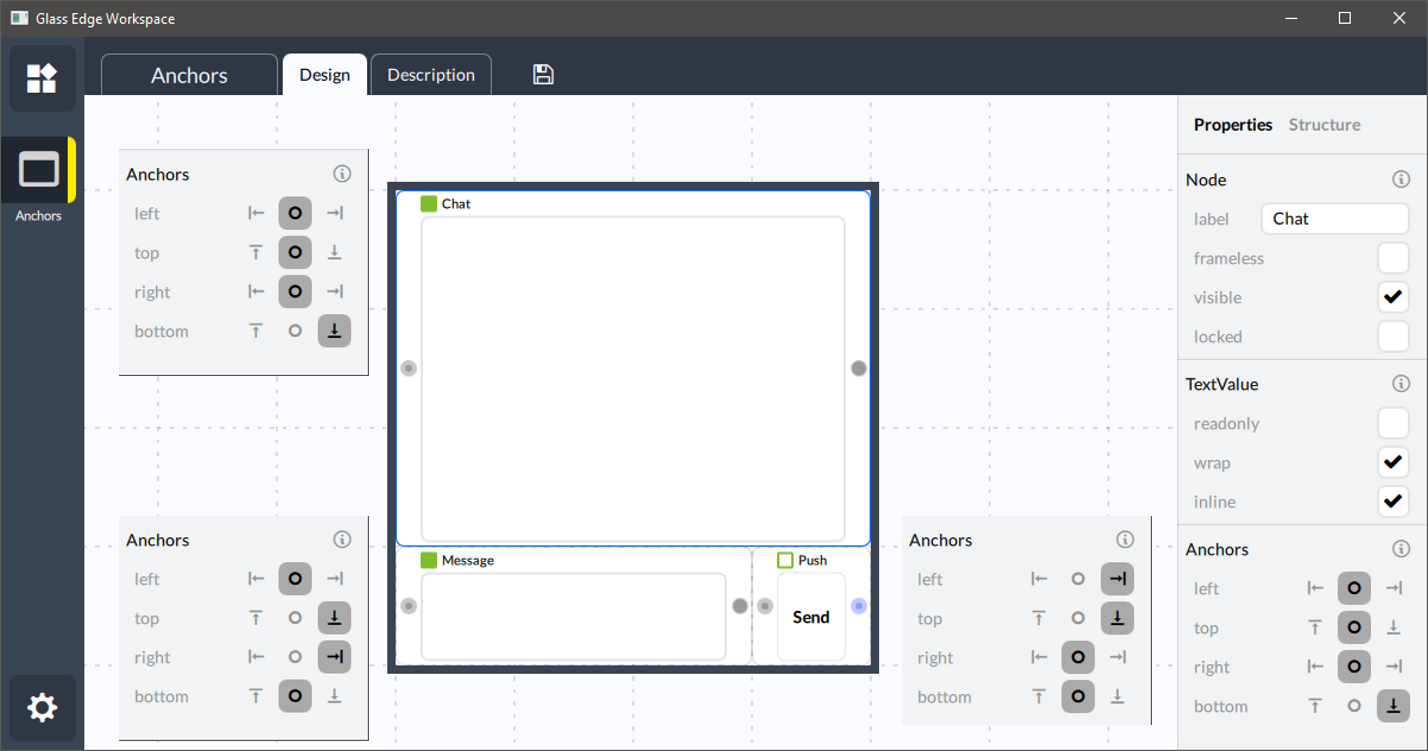
And now fullscreen view has proper control sizes: