Quick Start
Get started with Glass Edge Workspace to overcharge your workflows and optimize daily tasks. The application brings together services and tools into intuitive and flexible environment that can be easily adapted to any needs.
At a Glance
Here we use a pre-built MailInbox item to create a simple mail viewer. First, we expand the
viewing workspace area and drop MailInbox inside. MailInbox has three inputs: control, server and search.
Control input requires mail credentials, so we add AuthProfile item and select credentials profile.
Server input expects a string with server IMAP url. This url can be found in mail server settings, for
gmail it is imaps://imap.gmail.com. And the last input - search - requires a structure that specifies
which account folder to retrieve and what items to pick. In our case we choose gmail's starred items folder
and retrieve all emails.
After the inputs are connected, we can activate AuthProfile item and click Update button to retrieve emails.
Clicking items in the list will load them into the viewer area.
User Interface
User interface consists of these main components:
- Task Bar
- Explorer Panel
- Settings Panel
- Workspace
Task Bar
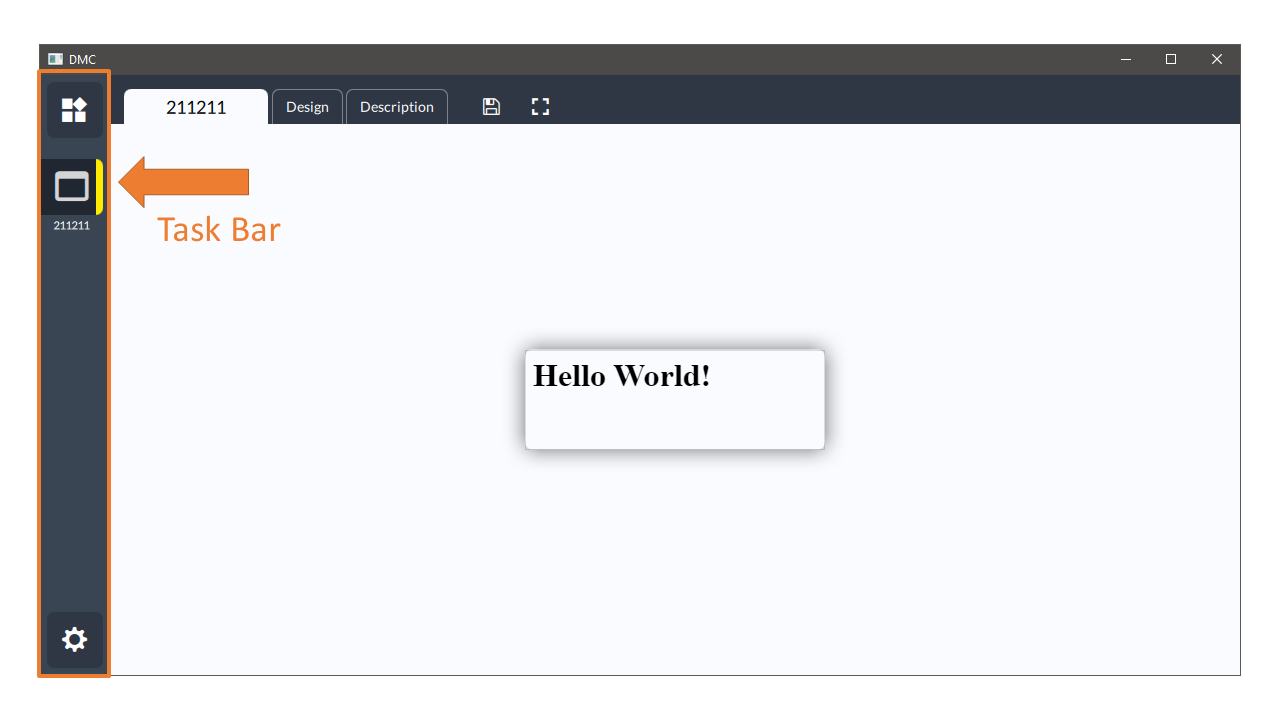
Task Bar is a bar on the left of the screen containing workspace icons and explorer and settings buttons.
Top button opens Explorer Panel, and the bottom button opens Settings Panel. When you open a
workspace, its icon appears on the Task Bar from where you can activate it. If you close the
application, it will remember what workspaces where open at a time and restore its state on the
next launch.
Explorer Panel

Explorer Panel contains collections of items that you work on or can use in your workspace. There are three main collections in Explorer Panel:
- Recent - recently open or used items
- My Items - local items created by user (writeable collection)
- Repository - attached repositories of standard items (readonly collection)
You can modify settings of the collections by clicking the gear button. The circle arrow button
is used to reload collection, if it was modified. And the plus button in My Items adds and opens
a new workspace.
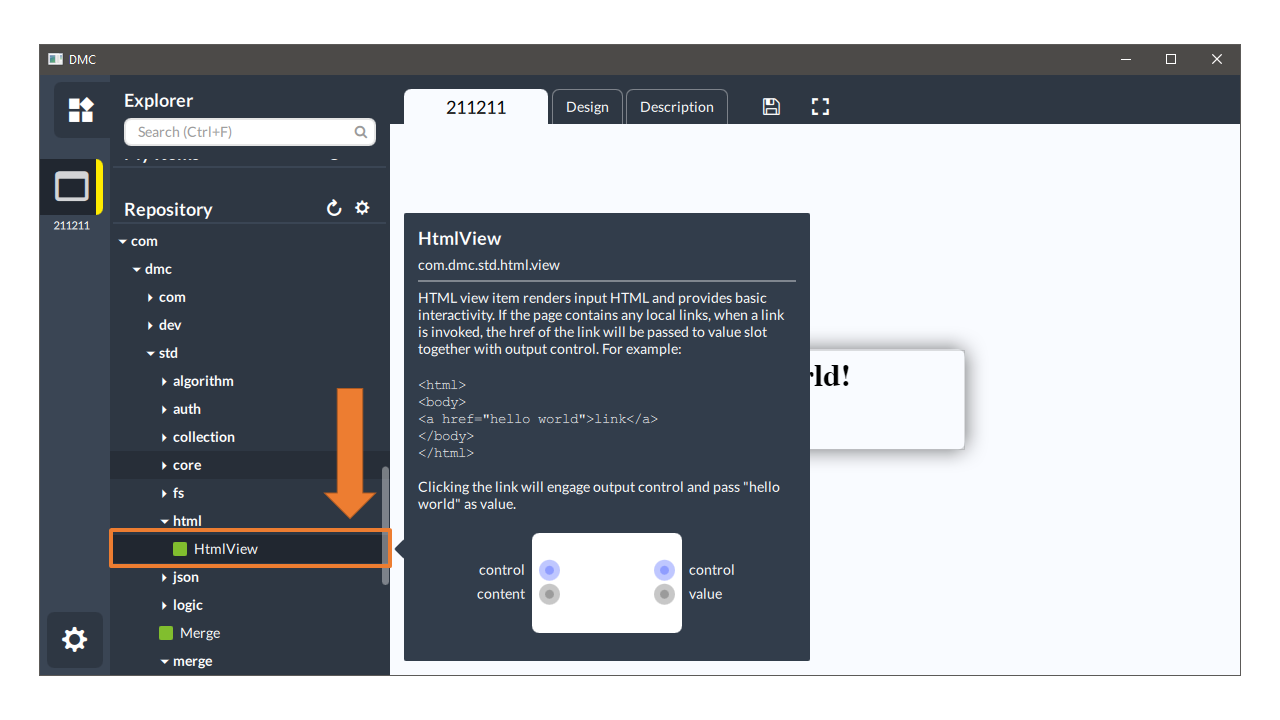
If you select an item in the tree, you can read its description. When in edit mode, items can be drag and dropped onto workspace area.
Settings Panel
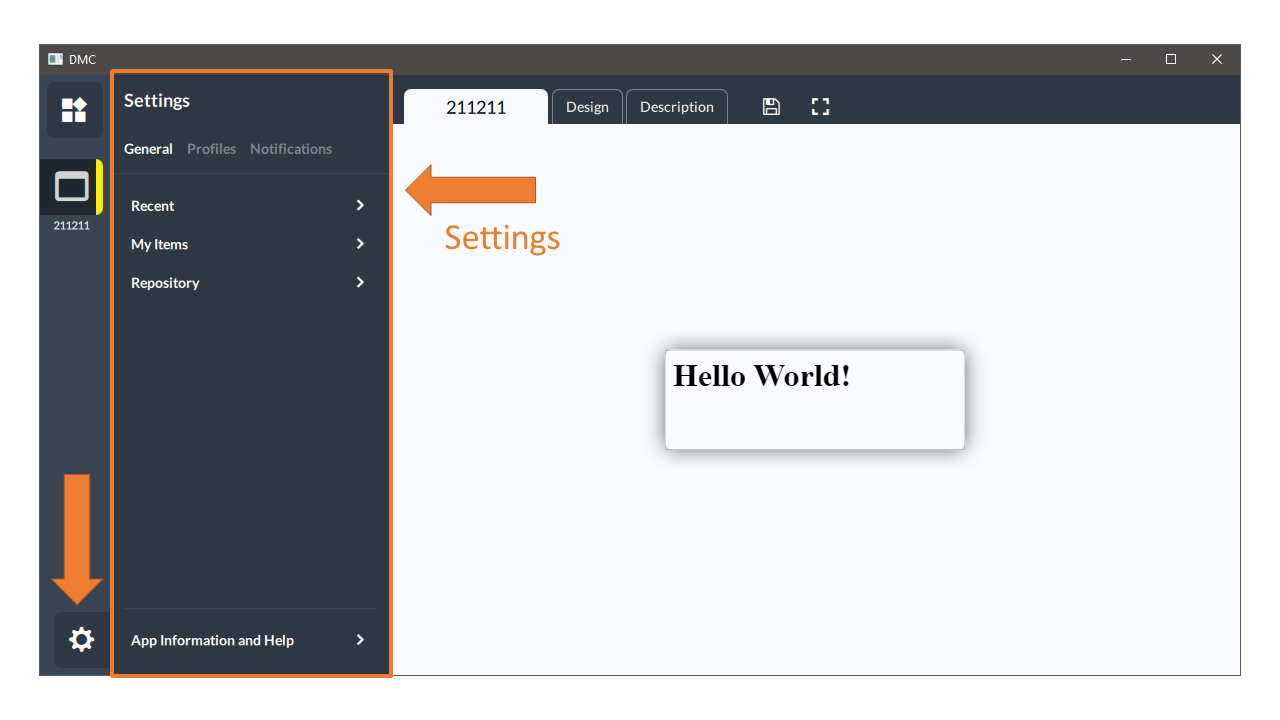
Settings Panel contains application settings grouped into a few sections:
- General - general settings for explorer collections
- Profiles - a list of profiles used for authentication
- Notifications - saved notification responses
A button at the bottom of the General section - App Information and Help - opens a help
page with links to news, documentation and contact. This page is also visible when no workspace
is open.
Workspace
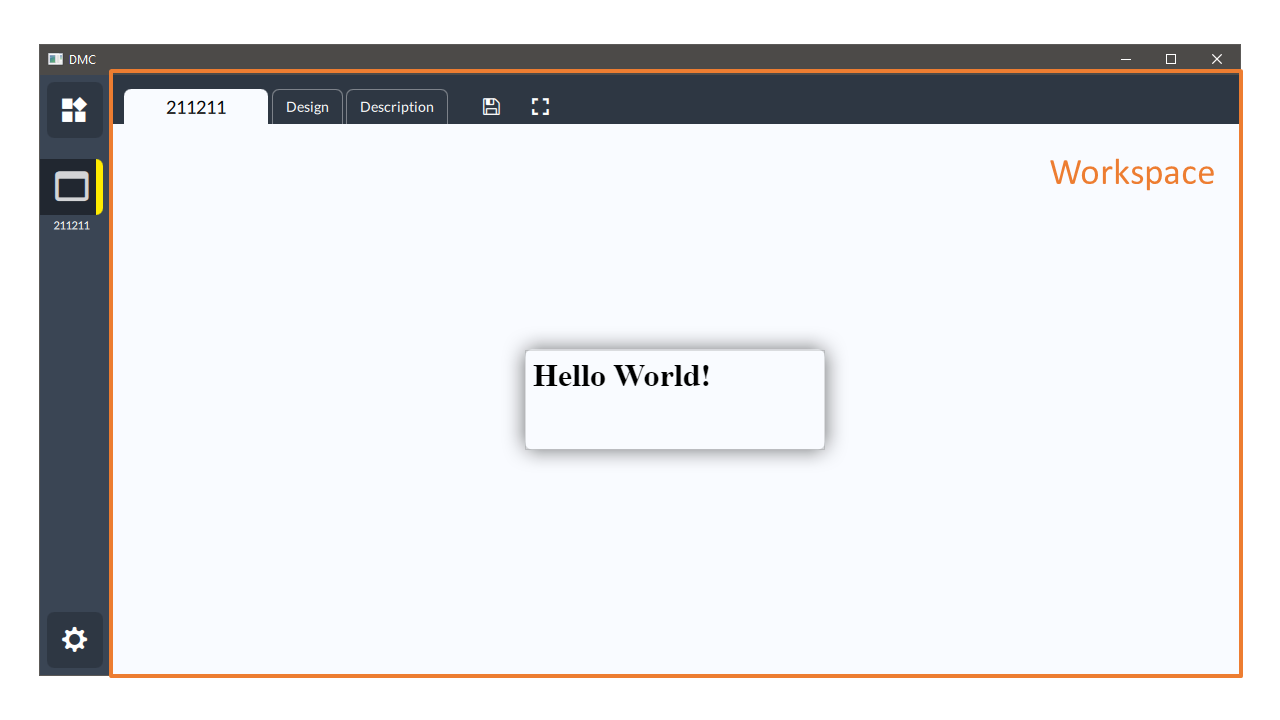
The main area of the application is dedicated to workspace. Currently active workspace is highlighted on the Task Bar and its contents is visible on the screen. All open workspaces continue execution on the background, but only the active one can be interacted with.
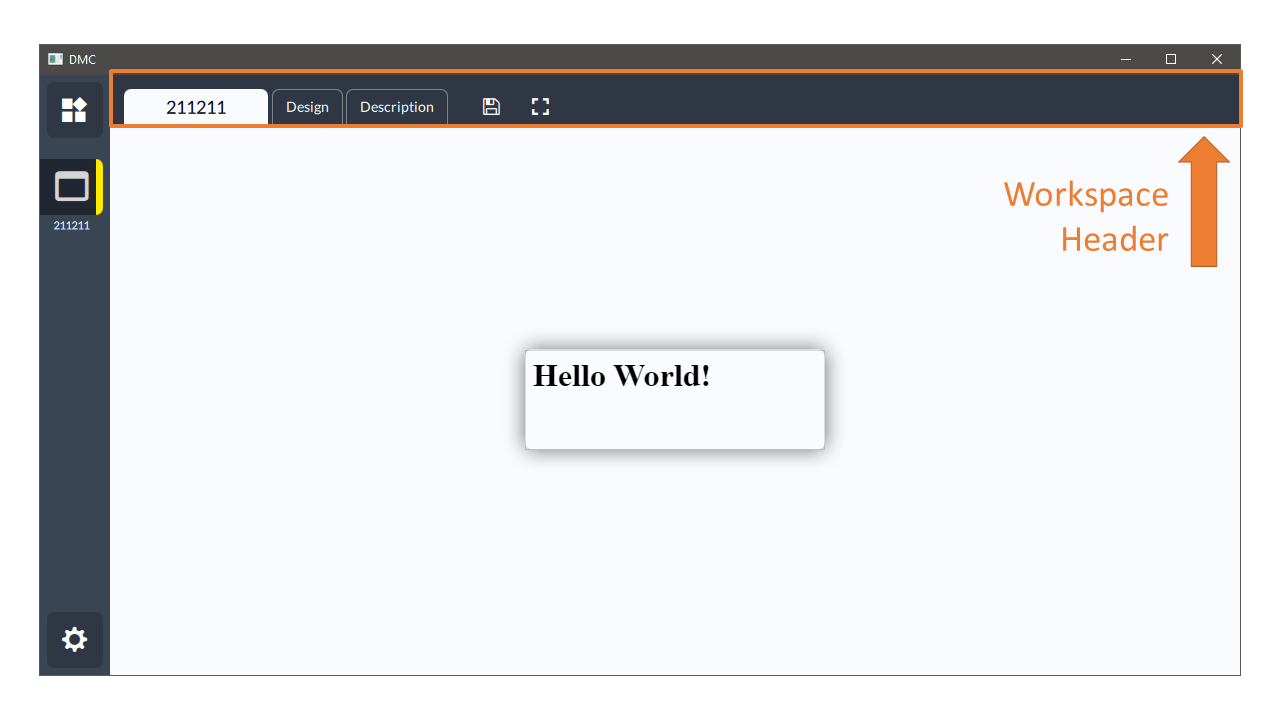
Workspace Header contains tabs and tool buttons. Tabs are used to switch between workspace modes:
View, Design and Description. View mode is the default mode used for interactions with
the workspace. Design mode is used to construct a workspace, and Description is for defining
workspace details as they are presented in Explorer Panel details screen.
Refer to Tutorial section in order to learn how to create and use workspaces.